How to check operation
Check that the OBD device and the probe are working correctly.
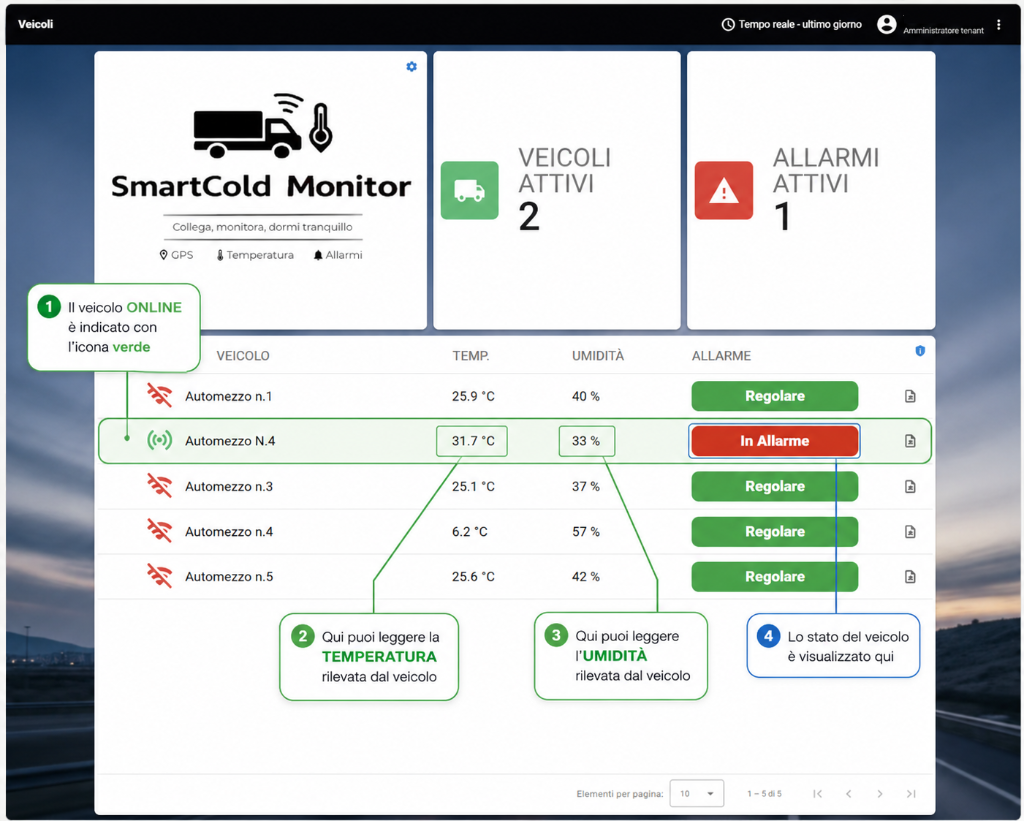
- Access the cloud on cloud.novabase.it with your credentials.
- In the vehicle list, check that your vehicle is present and shows the 'online' status (green icon).
- Check that the temperature and humidity data are displayed in the corresponding column.
- Click on the vehicle name to open the detail and check that GPS, speed and temperature are updated.
Notes
After installation, data can take up to 5 minutes to appear in the cloud. If the vehicle is turned off, the data will update the next time it is turned on.
⚠️ The Humidity column is only visible if the humidity sensor has been purchased as an additional accessory. If it does not appear, it is normal: your kit does not include this sensor.
Troubleshooting
If the vehicle does not appear in the cloud after 10 minutes, check that the OBD device is inserted correctly and that the engine is running.
Related guides
- How to install device OBD
Step-by-step guide to connect the OBD device to the vehicle.
- The vehicle is offline
What to do when a vehicle is not connected to the cloud.