How to read the vehicle list
Overview of the main dashboard with the list of all monitored vehicles.
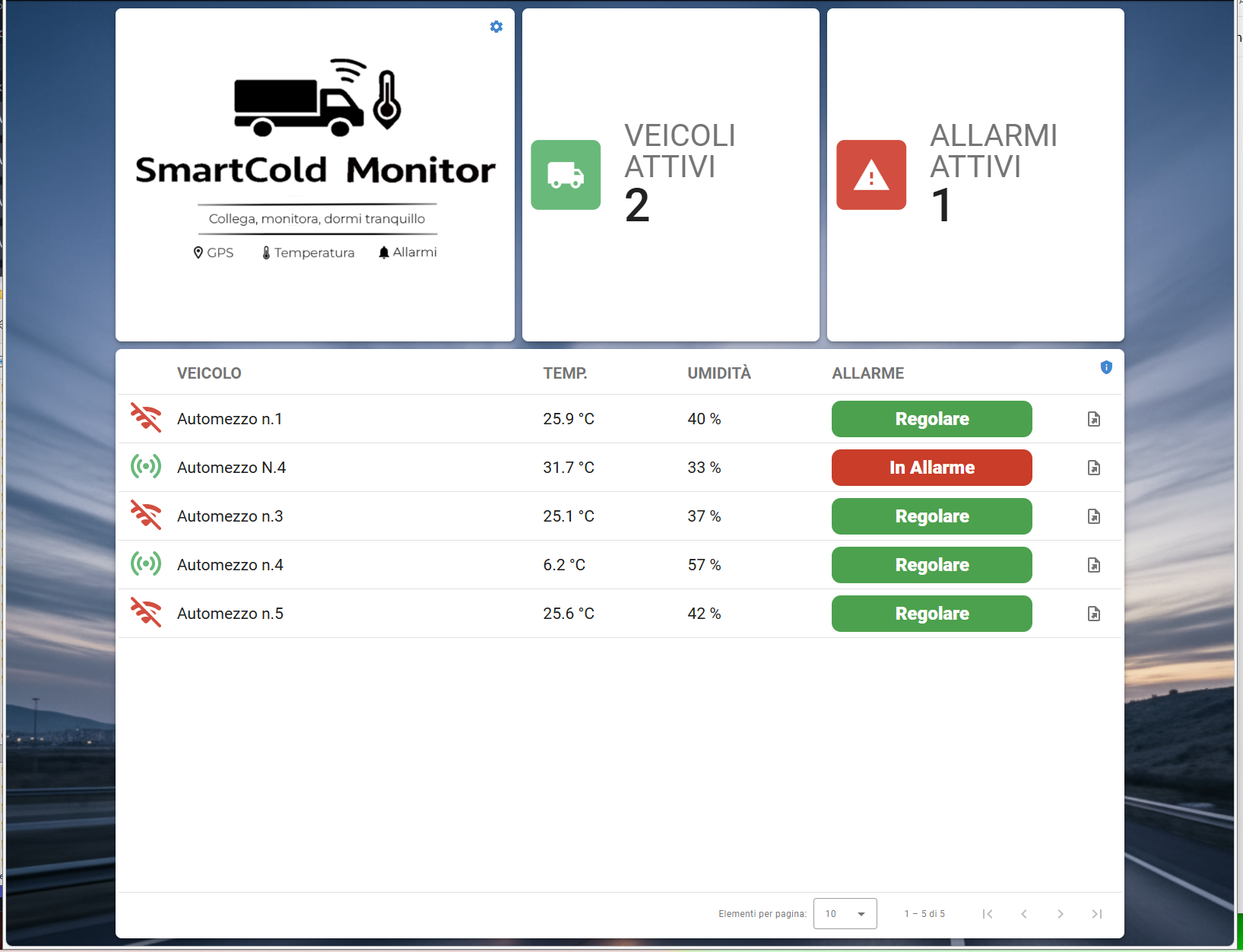
- Access the cloud. The first screen shows the list of all vehicles associated with your account.
- For each vehicle the following are shown: name, current temperature, humidity if present and alarm status.
- The alarm status indicates 'Regular' (green) if everything is normal, or 'In Alarm' (red) if the temperature is outside the threshold.
- The icons to the left of the name indicate the connection status: green = online, red = offline.
- The counters are visible at the top: active vehicles and active alarms.
Notes
The dashboard updates automatically. You can change the time interval using the selector at the top right.
Troubleshooting
If a vehicle does not appear in the list, it may be offline or not yet registered. Contact support if the problem persists.
Related guides
- How to open the vehicle detail
How to access all the detailed information of a vehicle.
- How to change the name of a vehicle
Customize the vehicle name in the dashboard.