How to export a report CSV
Download temperature data in CSV format for analysis or documentation.
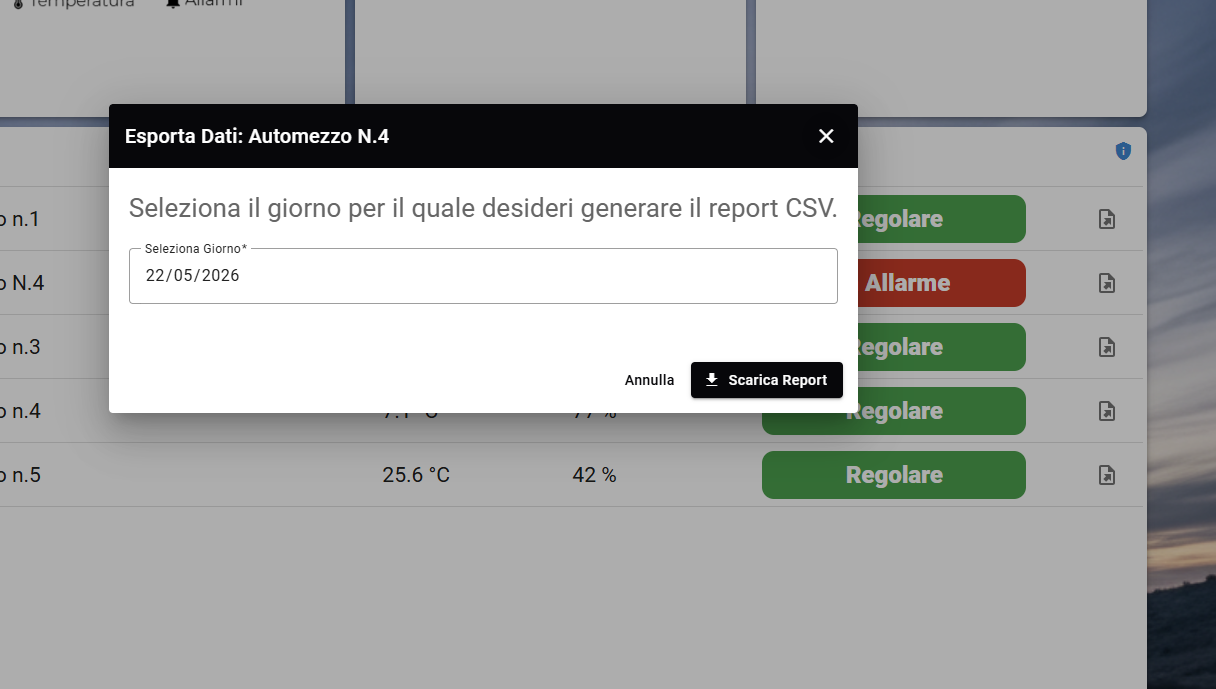
- From the vehicle list, click on the download icon (up arrow) on the right side of the row.
- The 'Export Data' window opens with the name of the vehicle.
- Select the day for which you want to generate the CSV report.
- Click 'Download Report' to start the download.
- The CSV file will contain all the temperature, humidity and alarm data for the selected day.
Notes
The CSV file can be opened with Excel, Google Sheets, or any spreadsheet program.
Troubleshooting
If the download doesn't start, check that your browser doesn't block pop-ups and try again.
Related guides
- How to download temperature data and GPS
Download the temperature history and data GPS of a vehicle for a specific day.
- How the daily HACCP report works
The automatic HACCP report for cold chain documentation.