How to change time interval
Select the data display period in the vehicle detail using the shortcut keys and navigate forward or backward in time.
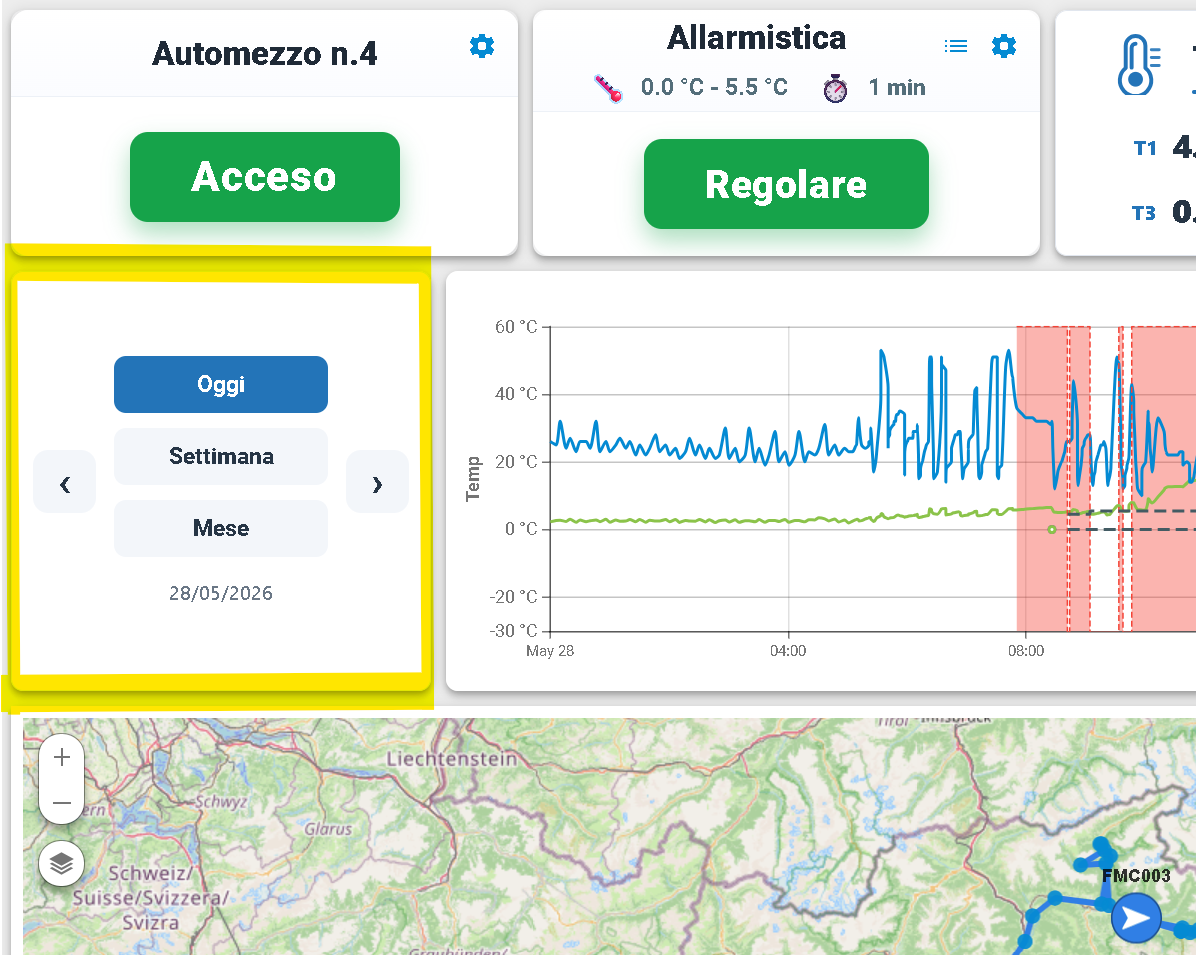
- They are present at the top left of the vehicle dashboard three hot keys to choose the display interval:
- Day — shows the last day's data
- Week — shows data from the last week
- Month — shows data for the last month
- Once you select the range, you can navigate forward or backward in time using the arrow keys next to the selector.
- Arrow ◀ left — go to the previous period (e.g. last week)
- Arrow ▶ right — go to the next period
- Changing intervals or navigating over time are automatically updated graphs, measurements, position GPS and historical data.
Notes
The selected range remains active until you manually change it. Use it to compare different periods or check the cold chain on specific dates.
Troubleshooting
If the data doesn't update after changing intervals or navigating, try reloading the page.
Related guides
- How to open the vehicle detail
How to access all the detailed information of a vehicle.
- How to read the temperature graph
Interpret the vehicle's temperature and humidity graph.